INSPIRED TOOLS / PDF

Add a text watermark to PDF

Add a text watermark to every PDF page with your chosen wording and opacity.

Switching tools requires selecting your files again. Save any results you need first.

Processing location

Changing processing location clears selected files and the current result. Save any needed results first.

Prepare your files

On-device processing

Selected files stay on your device. One PDF, up to 50MiB and 200 pages.

How to check your result

Semitransparent text is overlaid at the center on a fixed 30-degree diagonal, for purposes such as indicating review status.

What to check

  • Zoom in where the mark crosses small text or charts. Opacity adjusts readability and visual prominence.
  • The original text beneath the watermark is not removed. Do not use it for redaction or copy protection.

Redaction is a separate operation that removes sensitive content. Adding a watermark does not remove underlying content or hidden metadata. [1]

Sources and further reading
  1. Adobe · Redact sensitive content

Keep this tab open while processing. Changing files or settings releases the previous result link.

Add a text watermark to PDF

Add a text watermark to every PDF page with your chosen wording and opacity.

How to use this tool

On this device · no upload

  1. Choose one PDF.
  2. Enter up to 60 characters and choose opacity. Text is placed diagonally in the center of every page.
  3. Create the PDF and download the new file.
  4. Check the saved PDF for font appearance, wording and readability. Fonts may differ between devices.

Full instructions and practice files →

Real results from the same practice PDF

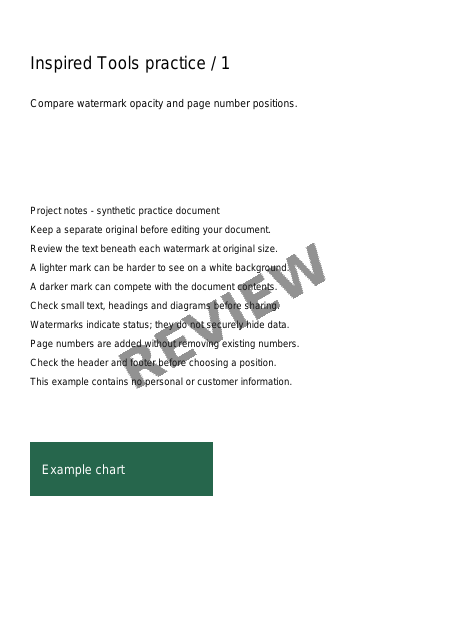
These results keep the REVIEW text in the same position and change only opacity. At 15% the mark is faint; at 50% it is more prominent over the contents. Try 25% first, then zoom in where it overlaps text or diagrams. Opacity is not a measure of secure redaction or copy protection.

Download the original three-page PDF ↓
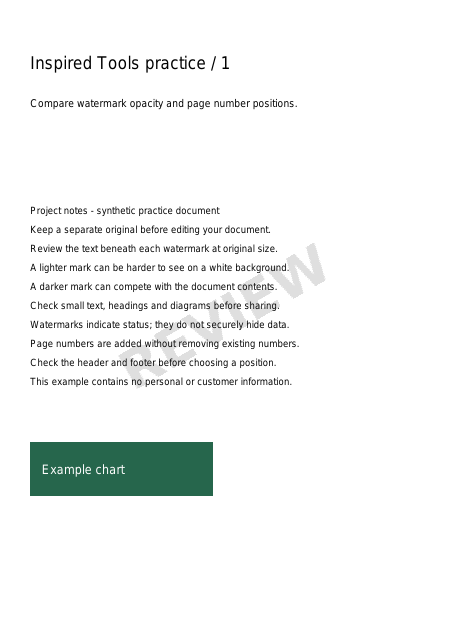
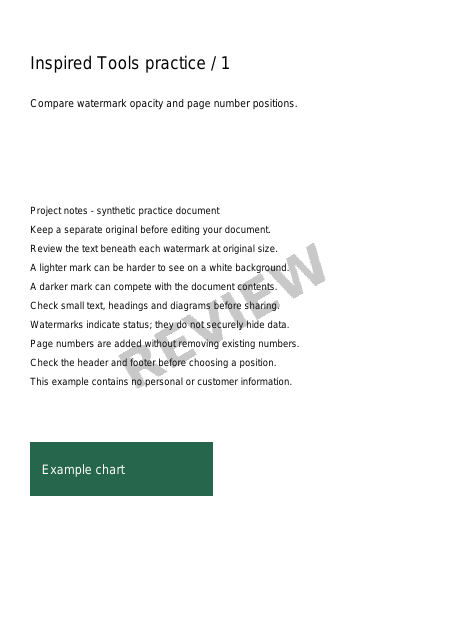
We processed our synthetic three-page document with the same PDF engine used by the tools. Images show a reduced first page of each result PDF. No personal documents were used; appearance can vary with device fonts.

Frequently asked questions

Can I add a logo or image watermark to a PDF?

This tool adds a text watermark. You can change the text and opacity. Its size is adjusted automatically and its angle is fixed at 30 degrees. Image and logo watermarks are not supported.

Does a watermark hide confidential text permanently?

No. A watermark adds visible text over the page; it does not remove underlying content. Use a dedicated redaction tool to remove confidential information and verify the result before sharing.

Are my files uploaded?

On-device mode is the default and processes files in your browser without uploading them. Server mode uploads files only after you read the notice and press the server action button. Check the tool for the limits and retention period before choosing that mode.