
INSPIRED TOOLS / PDF
Convert and edit PDFs
Choose the tool you need.
Convert images, merge PDFs and organize pages in one place.
Files are processed on your device by default.
Convert
PDF to images
Save selected PDF pages as JPG or PNG images, individually or in a ZIP.
Open tool IMG → PDFImages to PDF
Arrange JPG and PNG images, then choose page size and margins to make one PDF.
Open toolMerge and split
Merge PDFs
Combine multiple PDFs into one file in the order you choose.
Open tool PDF ÷Split PDF
Extract selected PDF pages or split a document by page range.
Open toolEdit pages
Organize pages
Preview PDF pages, then reorder, rotate or delete them.
Open tool # 1 · 2Add PDF page numbers
Add page numbers to every PDF page with your chosen starting number and position.
Open tool Aa / PDFAdd a text watermark to PDF
Add a text watermark to every PDF page with your chosen wording and opacity.
Open toolDocument information
PDF metadata and page size viewer
Check a PDF’s title, author, dates, page sizes and orientation.
Open toolCompare the result before you edit
Practical guides with original sample PDFs and downloadable results: check text, page order and paper sizes.
What changes when you convert PDF to JPG and back to PDF?
Pages can look similar while searchable text and clickable links change. Download the original, extracted pages and image PDF to compare the same document.
Read with examplesNumber the attachments, skip the cover: a PDF submission workflow
Combine a cover with two attachments, number only the body and check a result containing both A4 and Letter pages.
Read with examplesCompare PDF results by setting
Use practice files to compare resolution, page edits and watermark results.
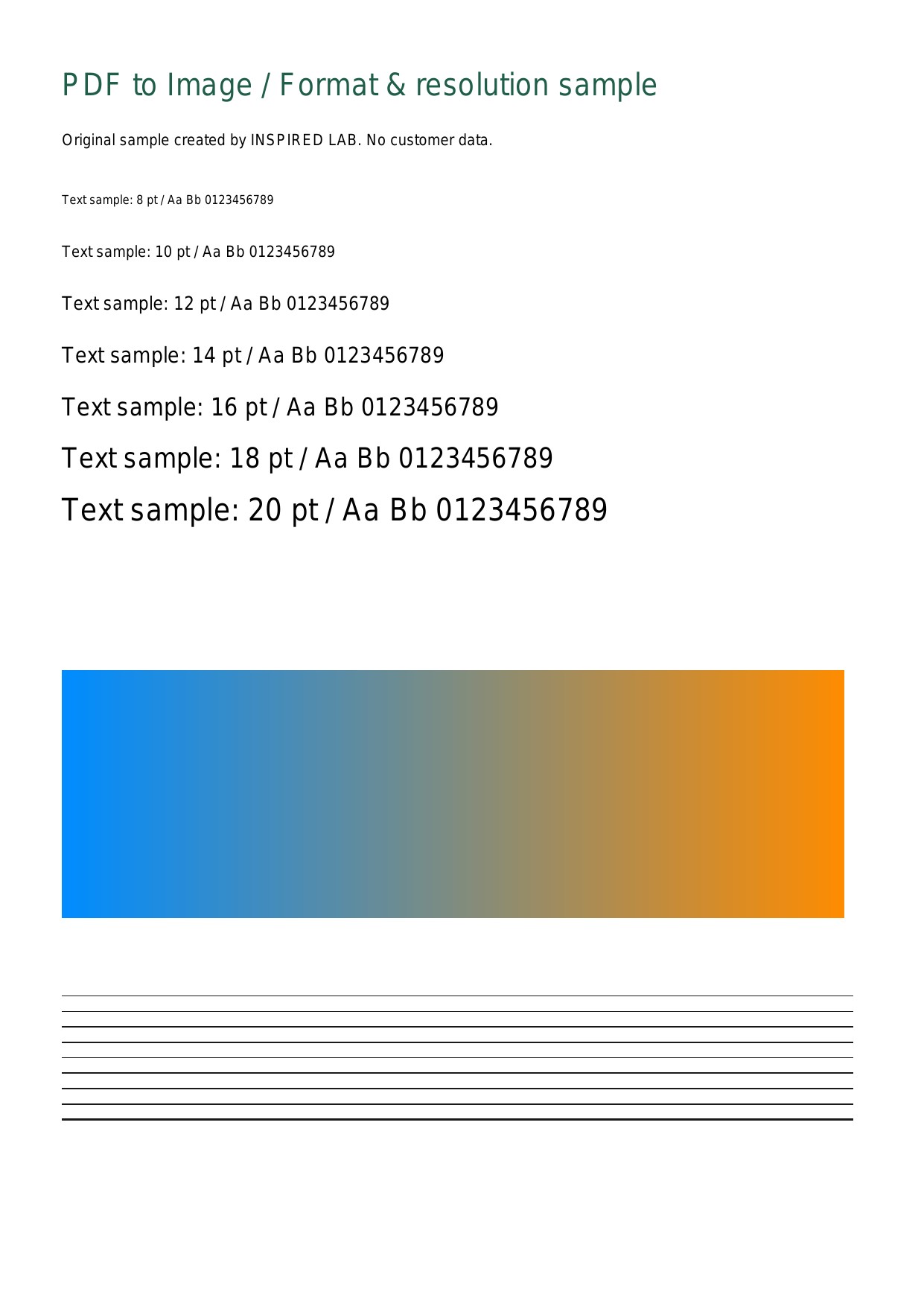 150dpi
Compare 96, 150 and 300dpi
Compare actual pixel dimensions and file sizes at 96, 150 and 300dpi before choosing quality.
Read guide →How to organize PDF pages
See a three-page document after deleting a page, changing the order and rotating a page.
Read guide →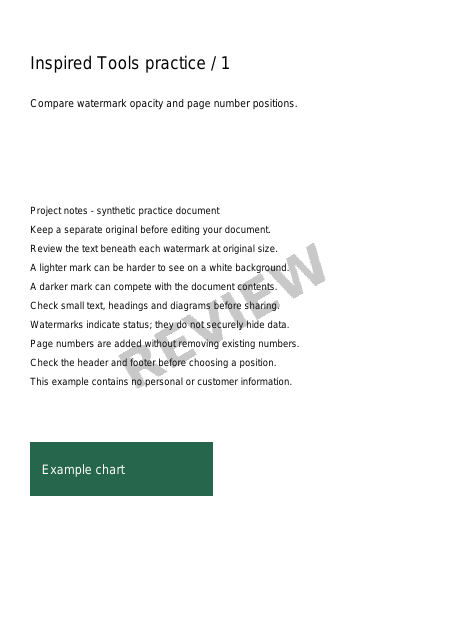 25%
25%Add a text watermark to PDF
Compare 15%, 25% and 50% opacity on the same document and check that its contents remain readable.
Read guide →Where are files processed?
All PDF tools process on your device by default. You can choose server processing after reading the upload notice. Selecting files alone does not upload them; press the server action button to start.
Read guides and conversion examples →