← Back to PDF tools

INSPIRED TOOLS / PDF

Compare 96, 150 and 300dpi

Higher resolution increases pixel count and processing demand.

Choosing a resolution

Start with 96dpi for quick on-screen viewing or 150dpi for general documents. Try 300dpi when you need to inspect small text or need more pixels, then check the result. It cannot restore details missing from a scan.

Memory usage

Doubling both dimensions produces about four times as many pixels. Compressed file size is different from memory usage. This tool processes one page at a time and caps the longest edge at 4,096px.

Compare at original size

Download the files below and inspect the same text at original size. Sizes are measurements of this sample, not guarantees of typical performance or quality.
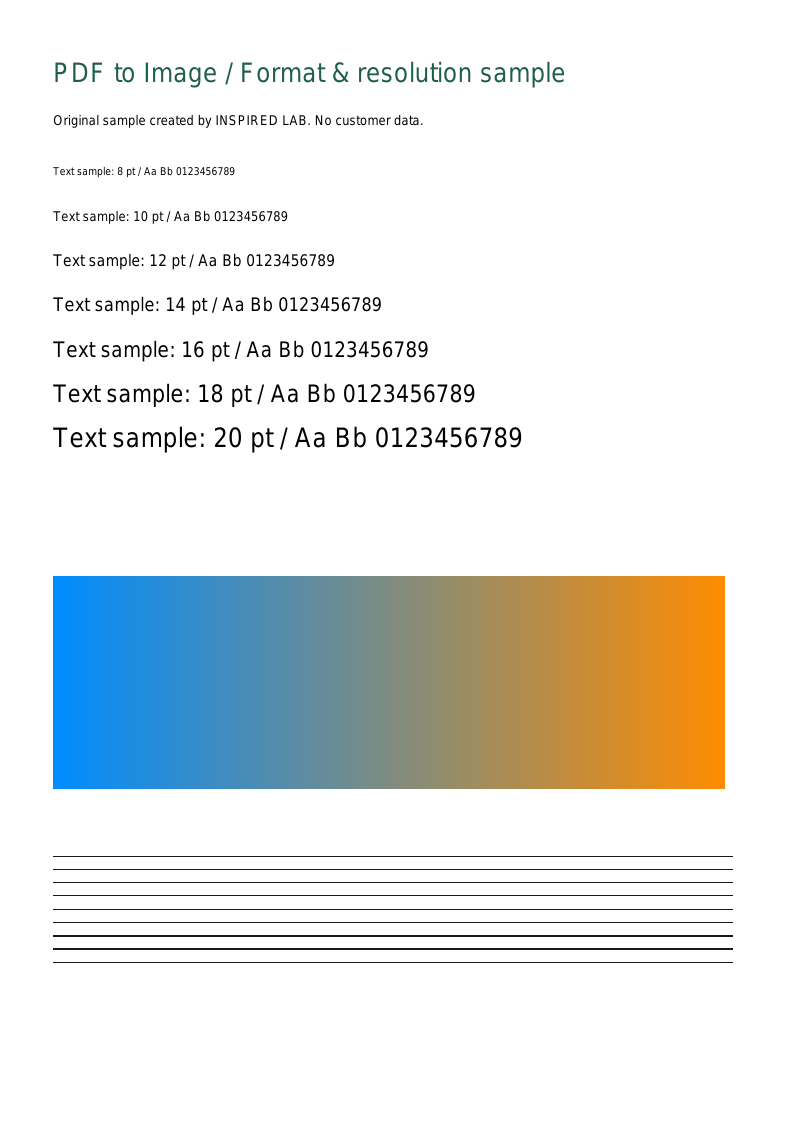
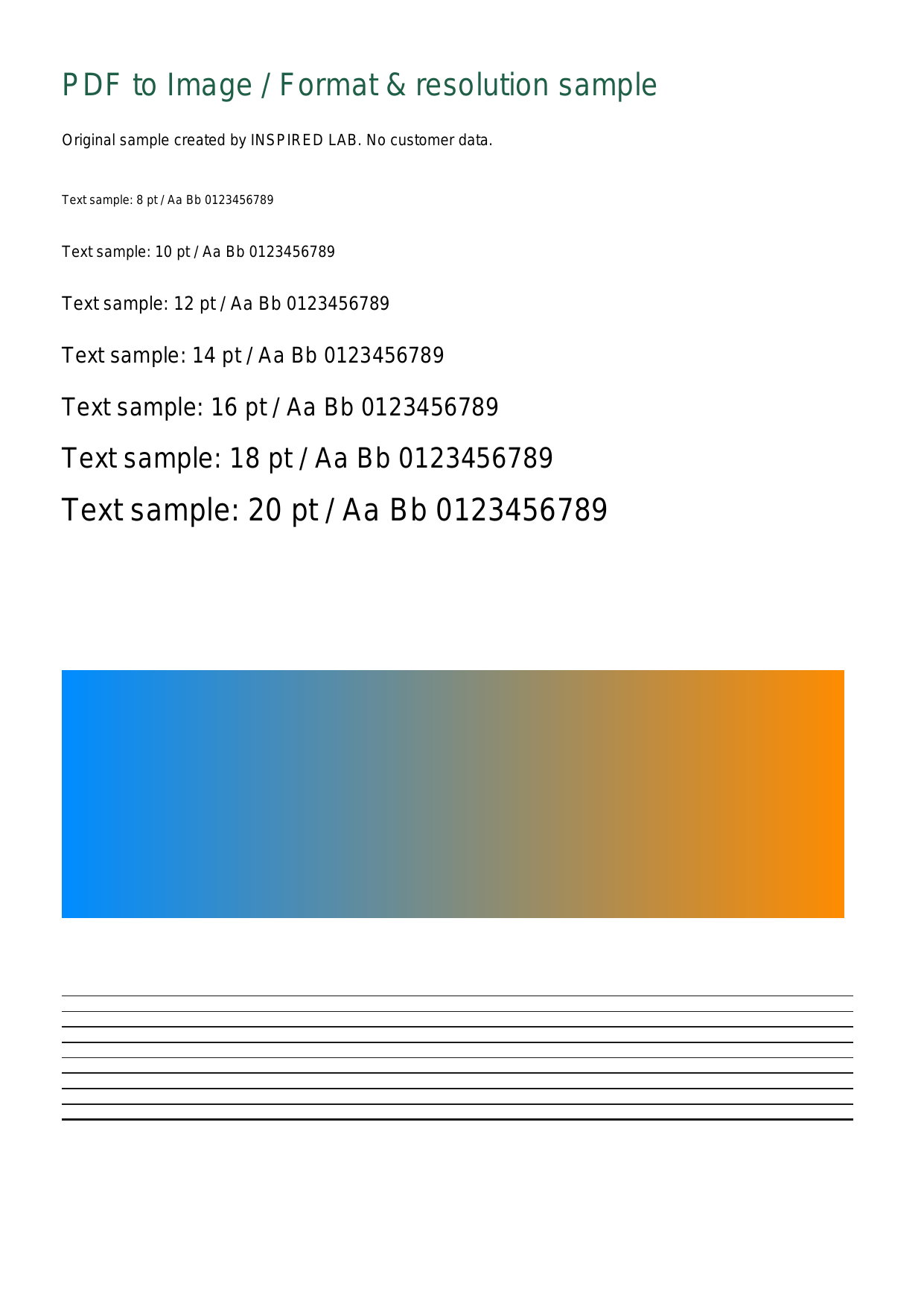
Actual outputs from the same PDF

Measured September 12, 2026 · Server conversion · JPG quality 90 · One A4 page.

Download the original sample PDF
Actual JPG conversion at 150dpi
JPG · 150dpi
Actual PNG conversion at 150dpi
PNG · 150dpi
Measurements for this sample — not a guarantee of other documents’ size or speed.
FormatDPIPixelsFile sizeFile
JPG96794 × 112379.1 KBDownload
PNG96794 × 112356.3 KBDownload
JPG1501241 × 1754151.5 KBDownload
PNG1501241 × 175483.3 KBDownload
JPG3002481 × 3508403.7 KBDownload
PNG3002481 × 3508182.2 KBDownload
Convert a PDFSee all guides