
How to use this tool
On this device · no upload
- Choose one PDF and check its page count.
- Choose the starting number and position. Every page receives a consecutive number.
- Create the PDF, then download the result.
- Compare page count, orientation and overlaps with the original.
Example and result check
With the three-page practice PDF, start at 5 and choose bottom center. The output keeps all three pages and adds 5, 6 and 7 at the bottom. Existing printed page numbers remain unchanged.
Practice file
Supported files and limitations
On this device · no upload
Adding numbers does not erase old numbers or update references in the body or table of contents. Numbers can overlap content on pages without margins.
Processes one PDF locally, up to 50 MiB and 200 pages. Output is limited to 128 MiB and processing to two minutes. Encrypted PDFs are unsupported. Signatures, bookmarks and forms may not be preserved. Keep the original.
Real results from the same practice PDF
Starting at 5 adds 5, 6 and 7 to the three original pages. Compare bottom center, bottom right and top center below. Existing page numbers remain, so choose space without a header or footer. To exclude a cover, split the document first, number the body and merge the files again.
Download the original three-page PDF ↓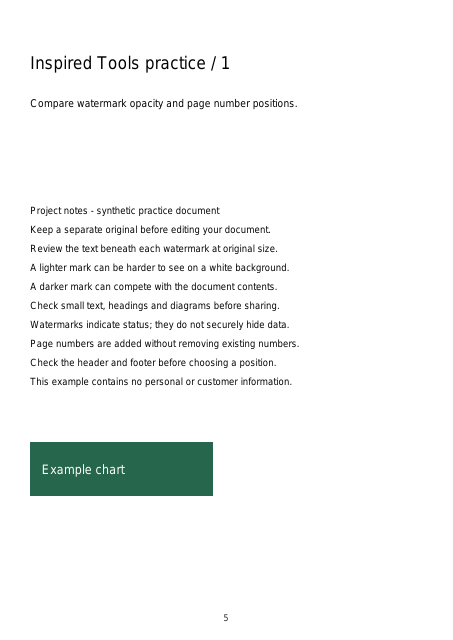
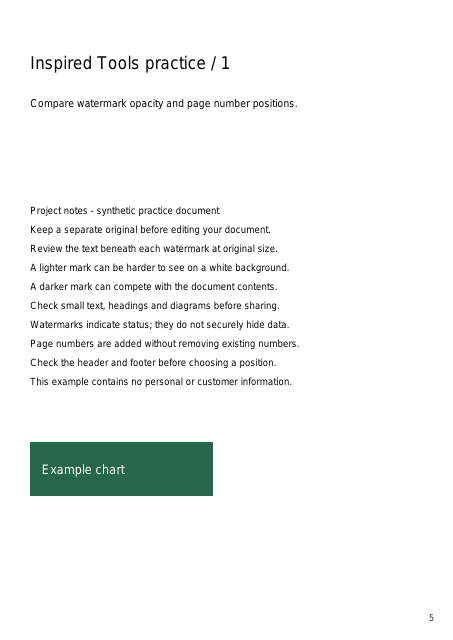
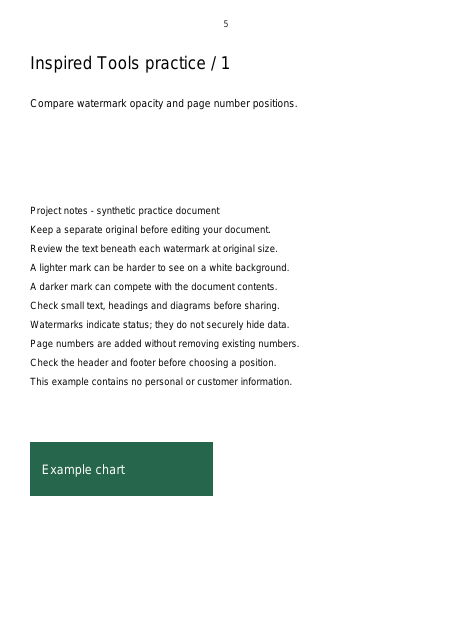
We processed our synthetic three-page document with the same PDF engine used by the tools. Images show a reduced first page of each result PDF. No personal documents were used; appearance can vary with device fonts.